 Web Technician Online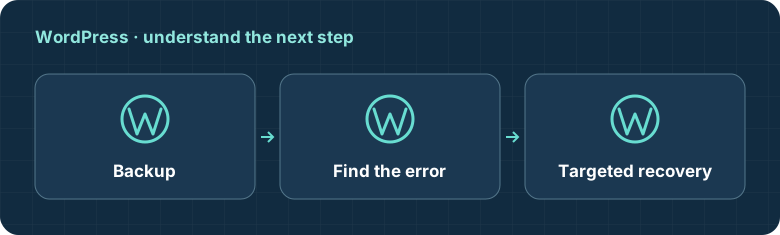
What does this mean?
WordPress temporarily enters maintenance mode during updates. If an update is interrupted, a maintenance marker can remain after work stops. Removing that marker while an update is still running can expose visitors to a partially updated site.
What should I check first?
Wait for the active update process to finish and check the dashboard or hosting update history. Record what was updating when access stopped. Verify your file and database backup before editing files, and confirm that another administrator is not still running the update.
How can I diagnose the cause?
Inspect the site’s documented maintenance mechanism and relevant error logs. A plugin or hosting service may implement maintenance separately from WordPress core. Confirm which component is producing the page before deleting similarly named files or disabling the wrong feature.
How do I fix it safely?
If the core update has definitely stopped, follow WordPress or the host’s documented procedure for clearing the stale .maintenance marker. Then verify whether the interrupted component is fully updated and complete or restore that update through supported tools. Do not delete random hidden files or overwrite the whole site.
Verify the fix and know when to contact your provider
Test public pages, admin access and important plugin functions before reopening fully. Ask the host if file ownership blocks cleanup or the update repeatedly fails. Supply the component, version, update time and redacted error log. Keep backups available until the site’s behavior and versions have been verified.
Work through these checks in order
- Check whether an update is still running and coordinate with other administrators. Do not remove the core maintenance marker until the interrupted process is definitely stopped.
- Follow the host’s procedure for clearing a stale .maintenance file only when core maintenance is responsible. A plugin-controlled maintenance page needs that plugin’s separate recovery controls.
- Verify the interrupted component’s version and functionality after reopening. Complete or restore the update safely, and inspect logs if another attempt leaves the site in maintenance again.
Which tool can help?
DNS tools show one resolver’s public answers. Record explainers do not authenticate a message, and calculators do not monitor a server. Use the evidence alongside your provider’s logs.